Company Info
Open Settings > Company Info. The screen maintains company branding, contact information, links, and workspace-wide settings.
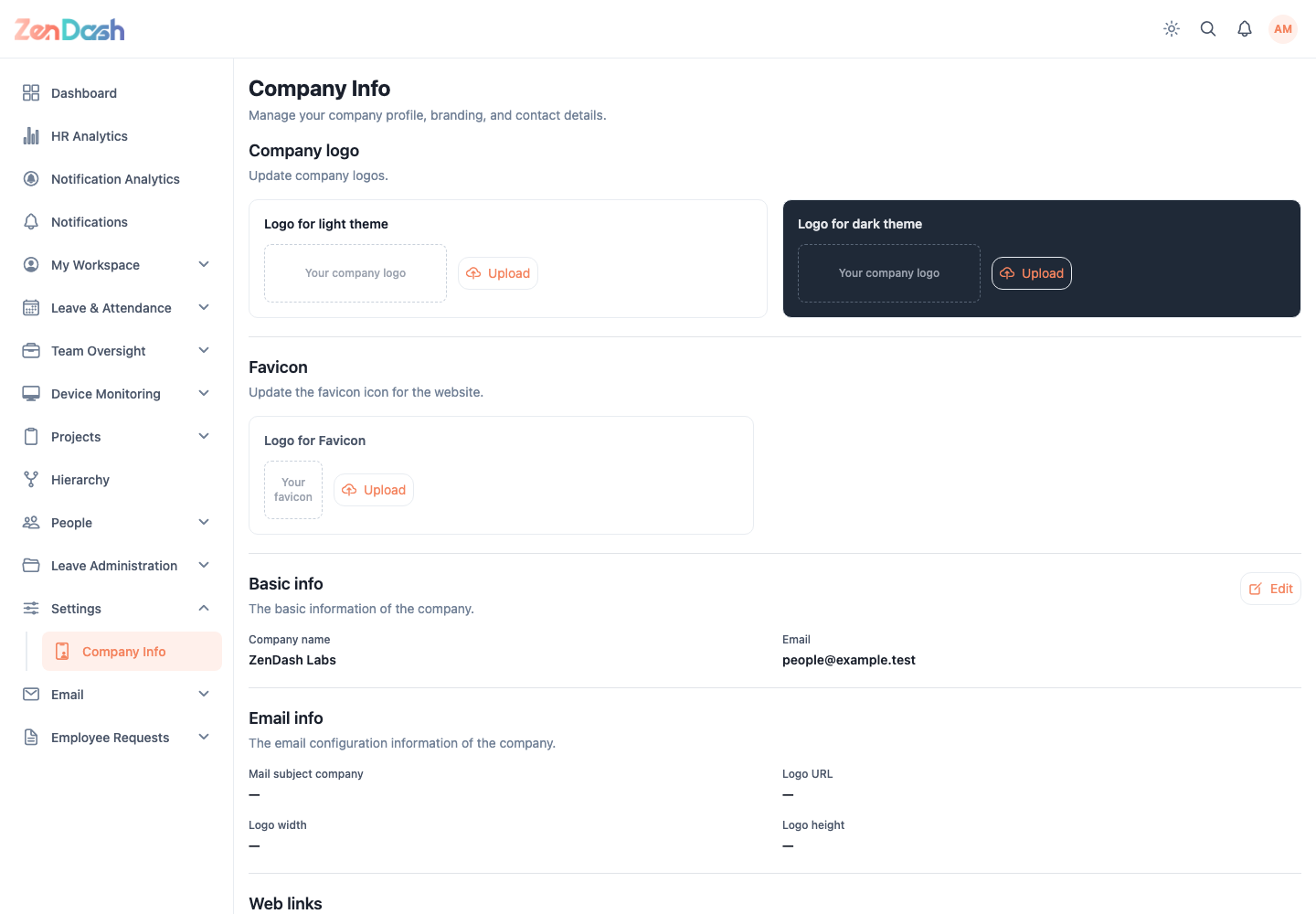
Branding
Upload separate Logo for light theme and Logo for dark theme files. Under Favicon, upload Logo for Favicon for the web app browser icon.
The app validates image selection and shows the updated asset after upload.
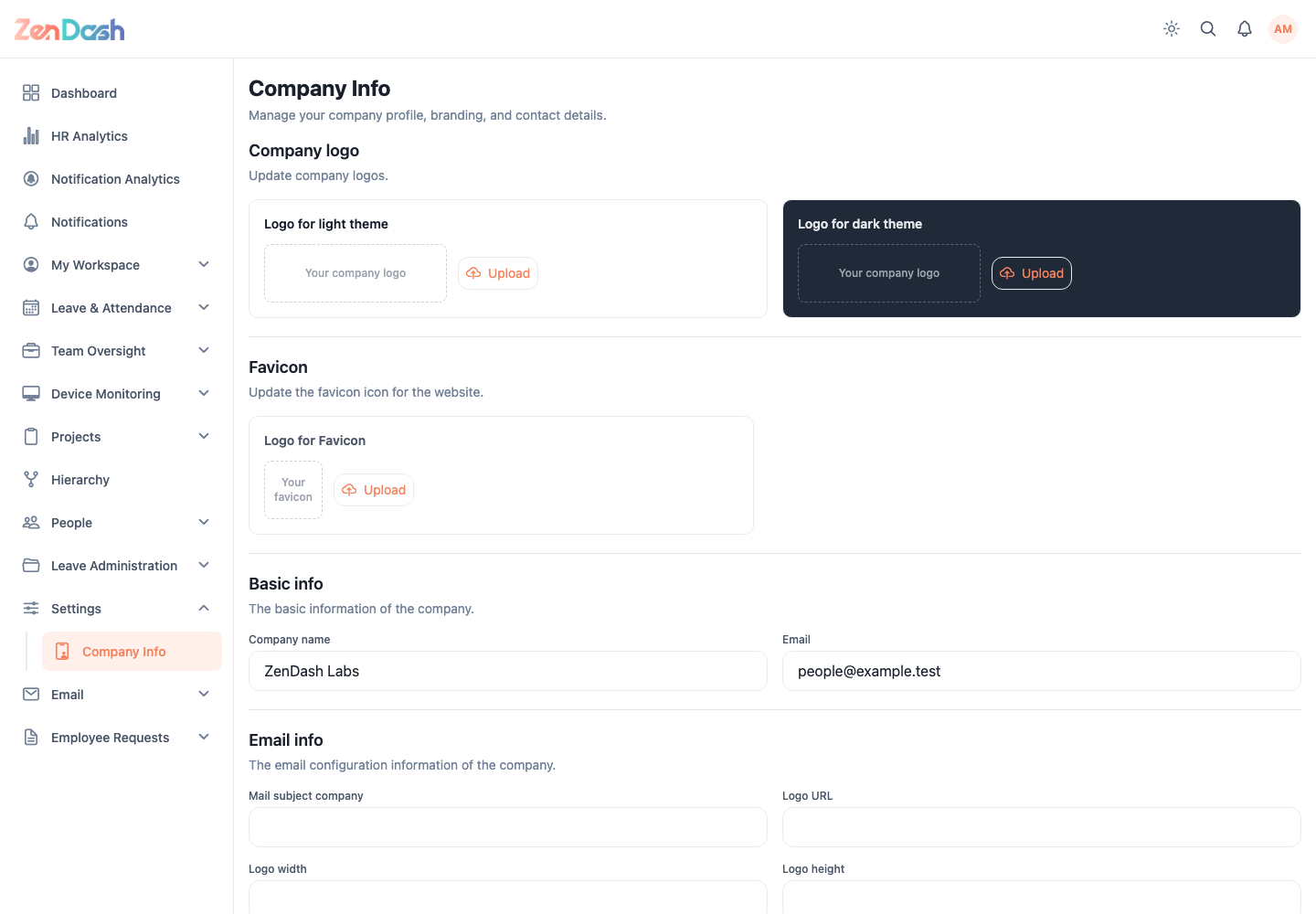
Edit company information
Select Edit, then review these sections:
- Basic info: Company name and Email;
- Email info: Mail subject company, Logo URL, Logo width, and Logo height;
- Web links: Admin base URL;
- Other info: Time zone, self-registration email verification, WFH for new employees, and the migration banner;
- Social info: Website, Facebook, Instagram, and Twitter URLs.
Select Submit to save or Cancel to restore the loaded values.
Turn WFH enabled for new employees on when employees created through self-registration, individual admin entry, or bulk admin entry should start with Work From Home enabled. When it is off, Work From Home is disabled at creation and must be enabled for each employee afterward. The setting is off when it has not been configured for the workspace.
Turn Migration banner on to show the old app's prompt to move to Zendash and to show the No, go back banner to users who enter Zendash from the old app. Turn it off to hide both banners. The setting is disabled when it has not been configured for the workspace.
Set the WFH request cutoff
The WFH request cutoff is edited separately from the company information above it. Select Edit, turn Enforce cutoff on or off, and choose the Cutoff time (day before) when enforcement is enabled. Select Save to apply the setting or Cancel to restore the loaded values.
When enforcement is on, employees must submit a Work From Home request before the configured time on the day before its requested date. When enforcement is off, the application allows requests for any date, including same-day and past dates.
Company logos, base URLs, time zone, and email settings affect the shared workspace. Test branding in both themes and verify links before saving.